
Installer
RecommendedInstalls OpenStickies and adds Start menu and desktop shortcuts.
OpenStickies-Setup-<version>.exe
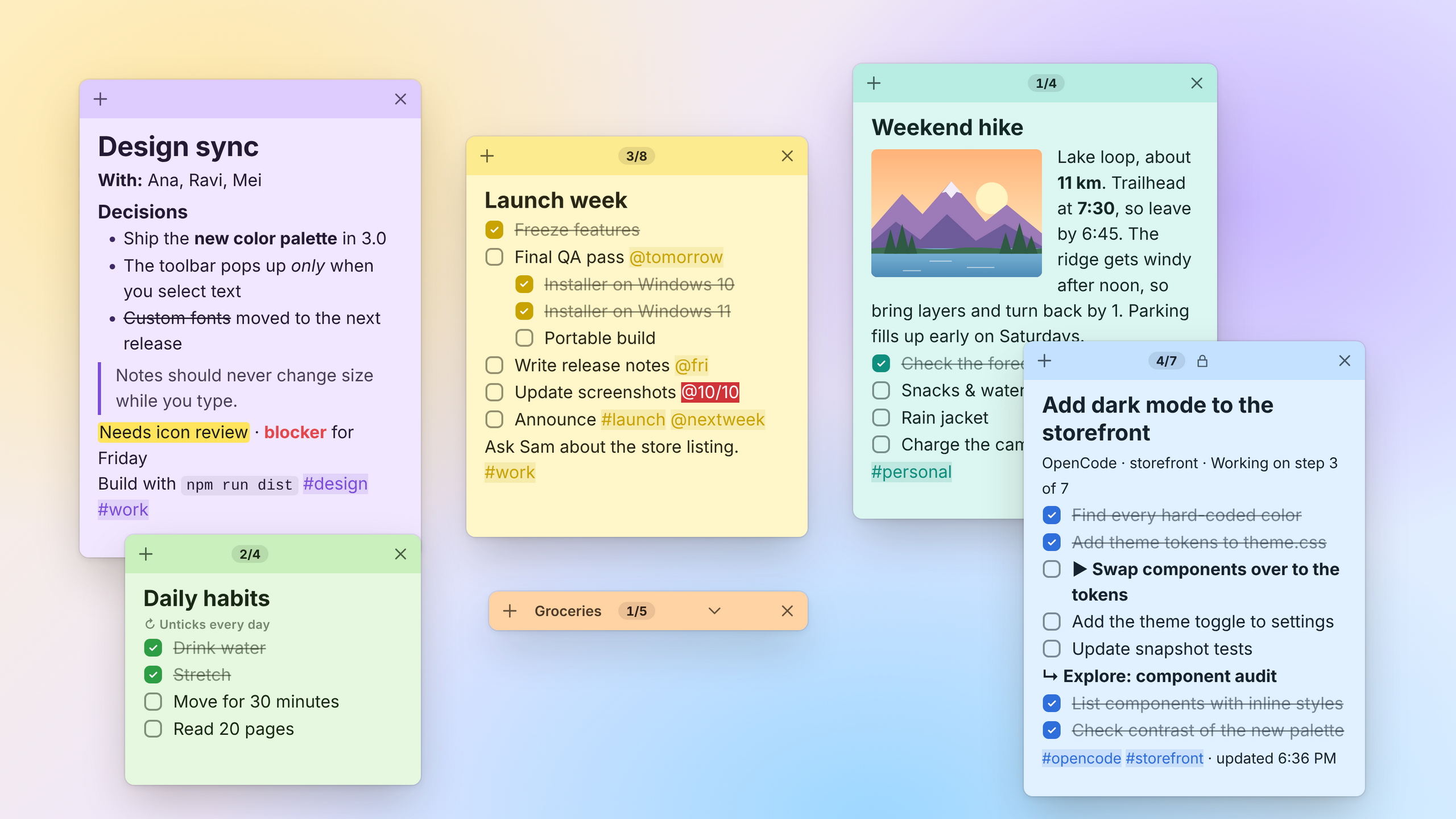
Every note is its own small floating window, like classic Stickies — now with rich formatting, pictures, smart checklists, tags, workspaces, version history and private notes.
Features
OpenStickies keeps the classic idea of small notes floating on your desktop, and rebuilds everything inside them.
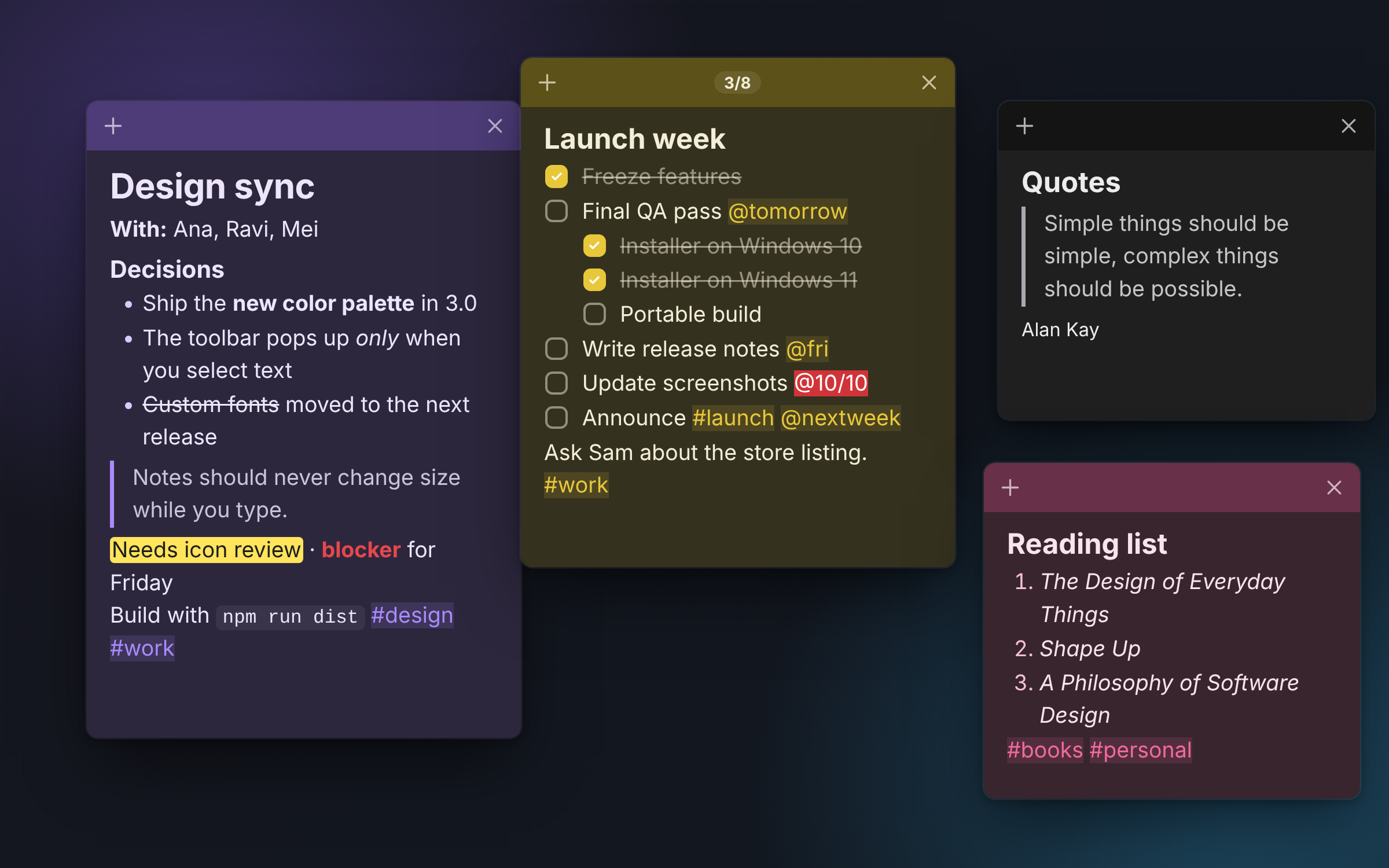
Headings, colors, highlights, tables, code and a “/” command menu.
Nested items that stay in sync, due dates and a progress count.
Snip the screen into a note; the words in pictures become searchable.
Save note layouts as “Work” or “Home” and switch in a keystroke.
See word-by-word changes and restore any earlier version.
Encrypted on disk with AES-256-GCM, unlocked by your password.
Writing
Format as you type with Markdown-style shortcuts, or type / to insert a heading, checklist, table, image, screen snip, date, link, reminder or template.
# for a heading, - for bullets or [] for a checklist, and **bold** or ==highlight== inline.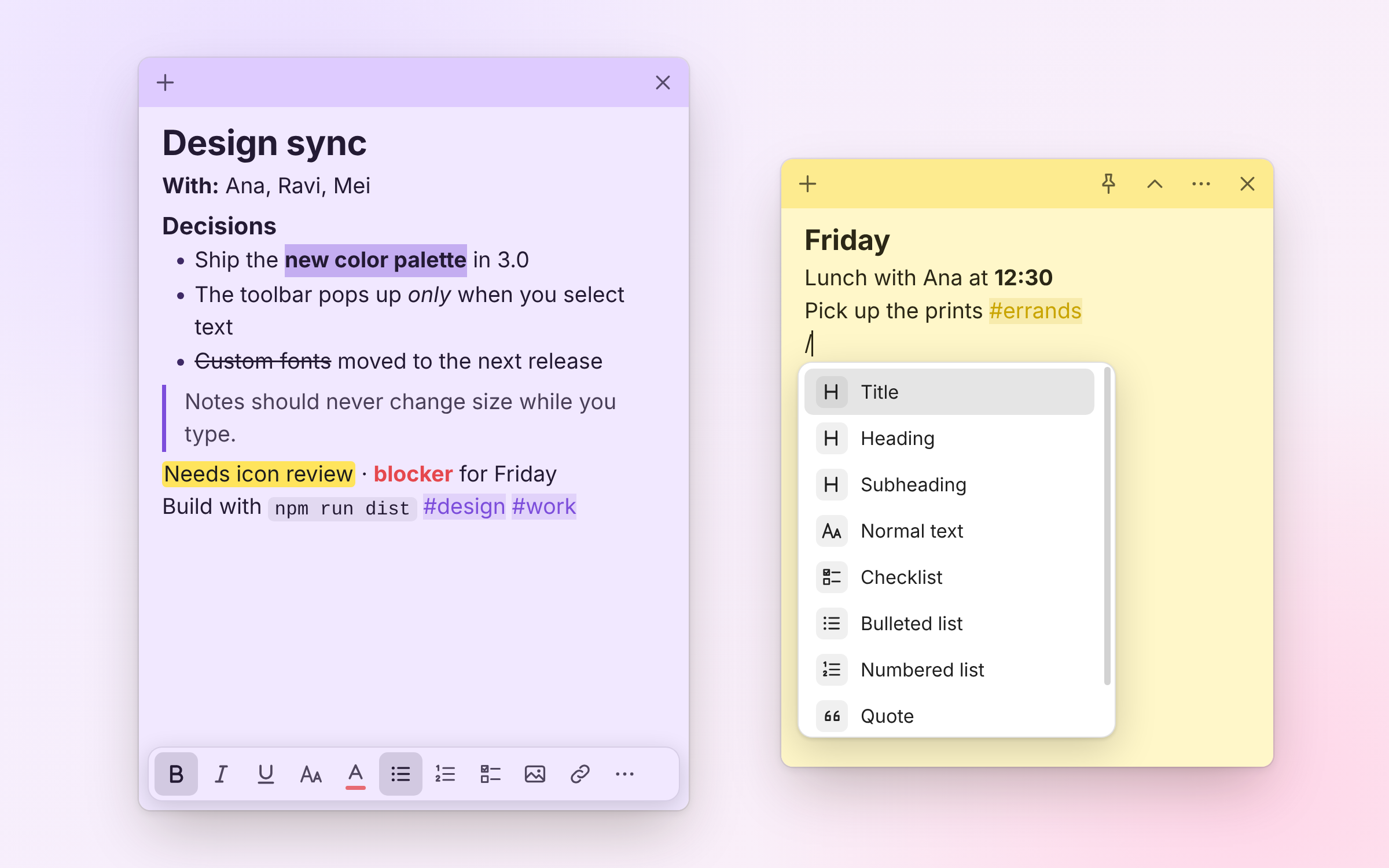
Checklists
Nest items with Tab, and parents and sub-items stay in sync. A progress count like 3/8 shows in the title bar.
@today, @fri, @nextweek, @+3d or @10/20 for a due date. Overdue items turn red.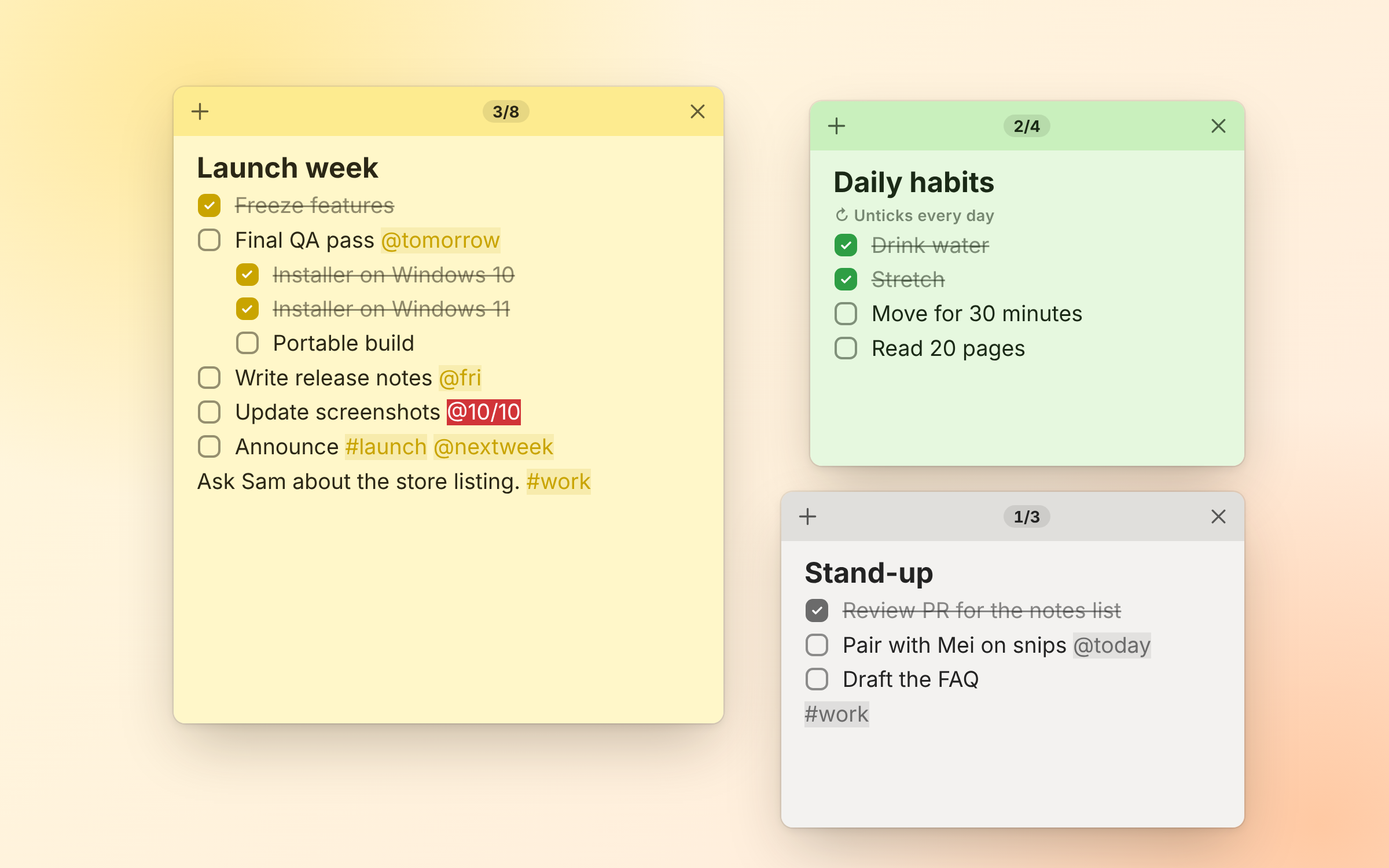
Pictures & snips
Paste, drag in or snip the screen, then lay pictures out the way you would in Word.
/snip in a note.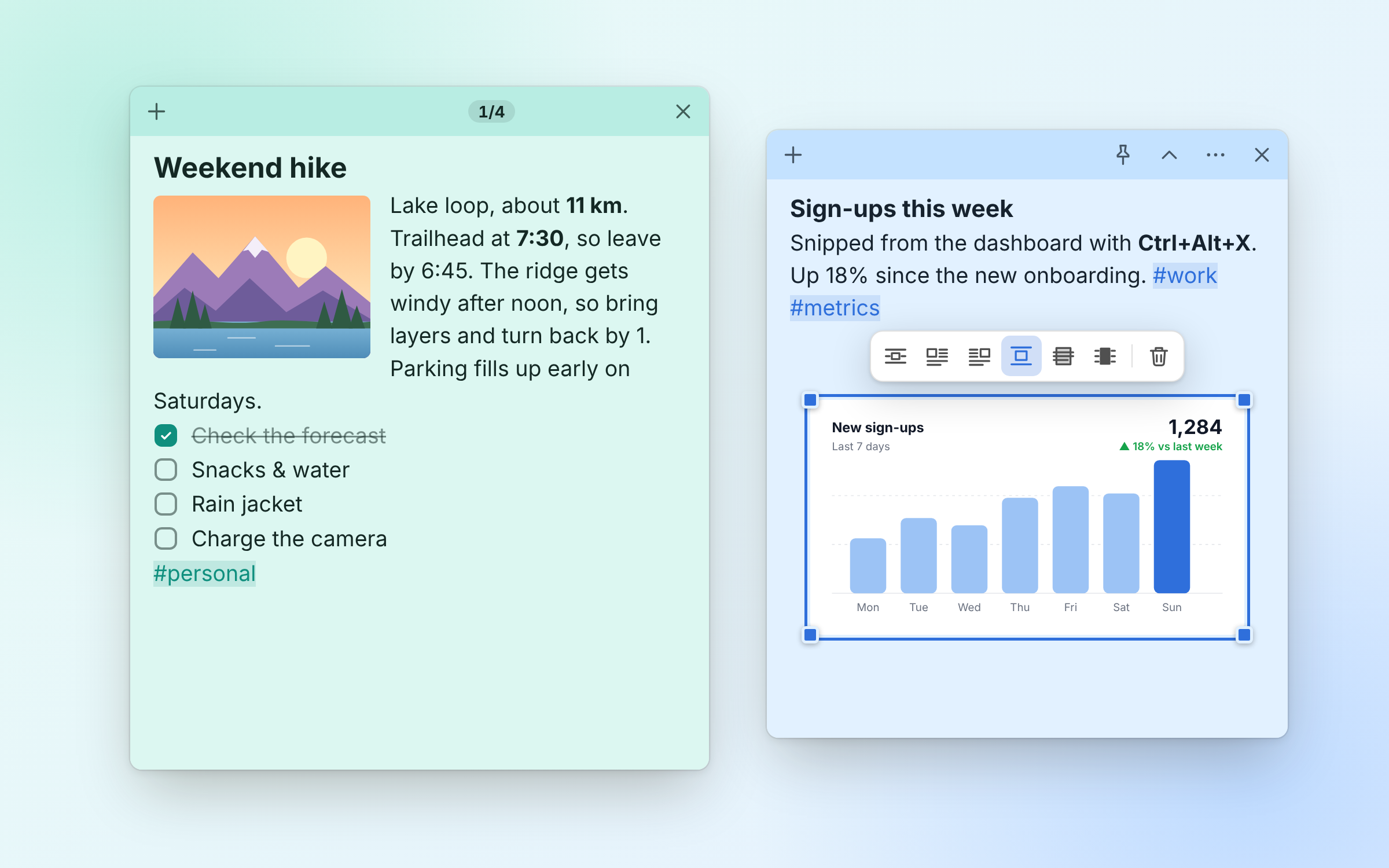
Organize
Type #project to tag a note and [[ to link to another. Open the notes list with Ctrl+H to search all of them.
# suggests tags you’ve already used. Ctrl+Click a tag to list every note that has it.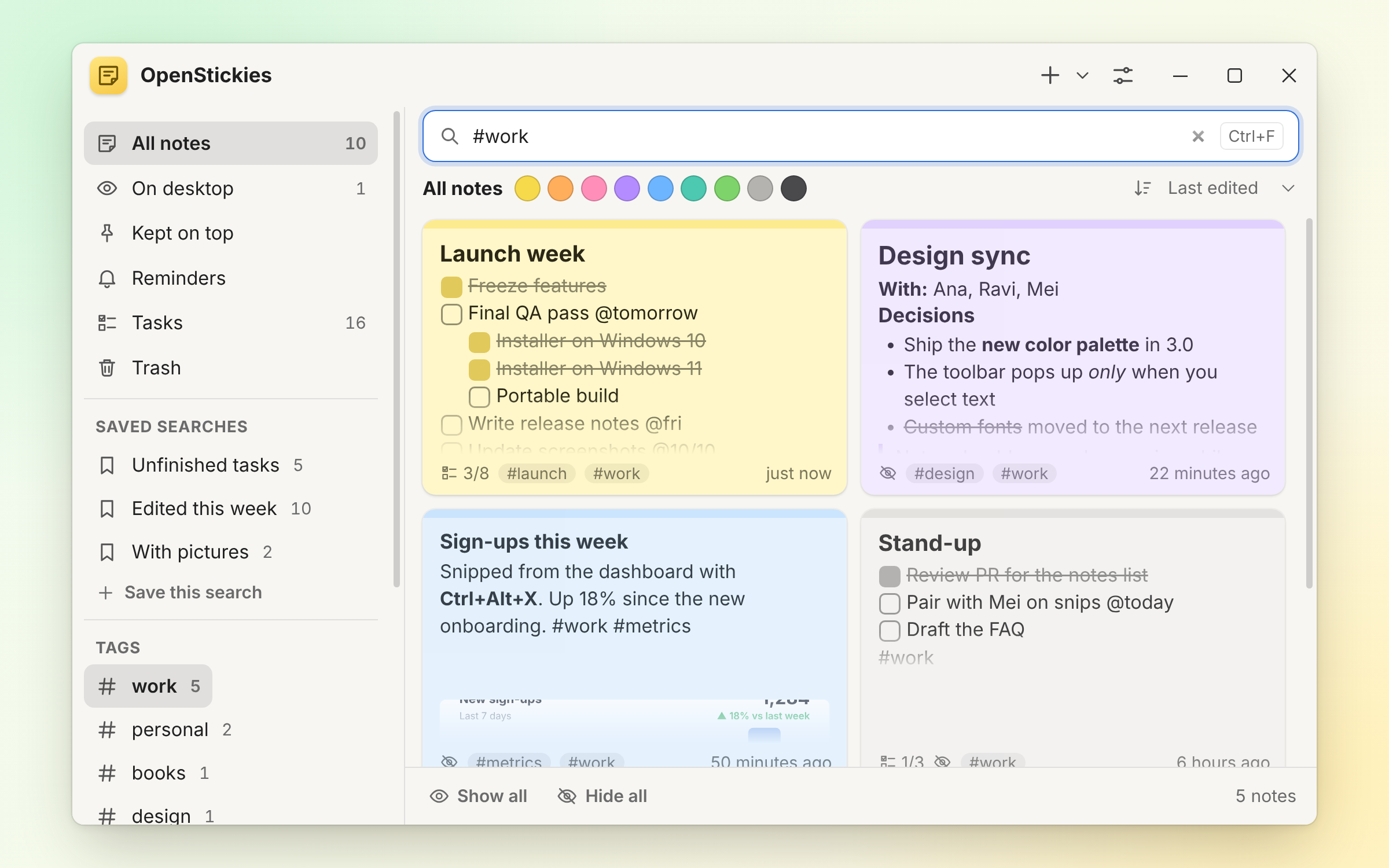
Type a filter into the notes list, then click Save this search to keep it in the sidebar.
#workhas:uncheckedhas:imageedited:today edited:week edited:3ddue:today due:week due:overdueis:open is:pinnedcolor:blue"call back"Tasks
The Tasks view gathers every unticked checklist item from all your notes, grouped by note or by due date.
@fri or @10/20 you type in a checklist.due:today, due:week or due:overdue.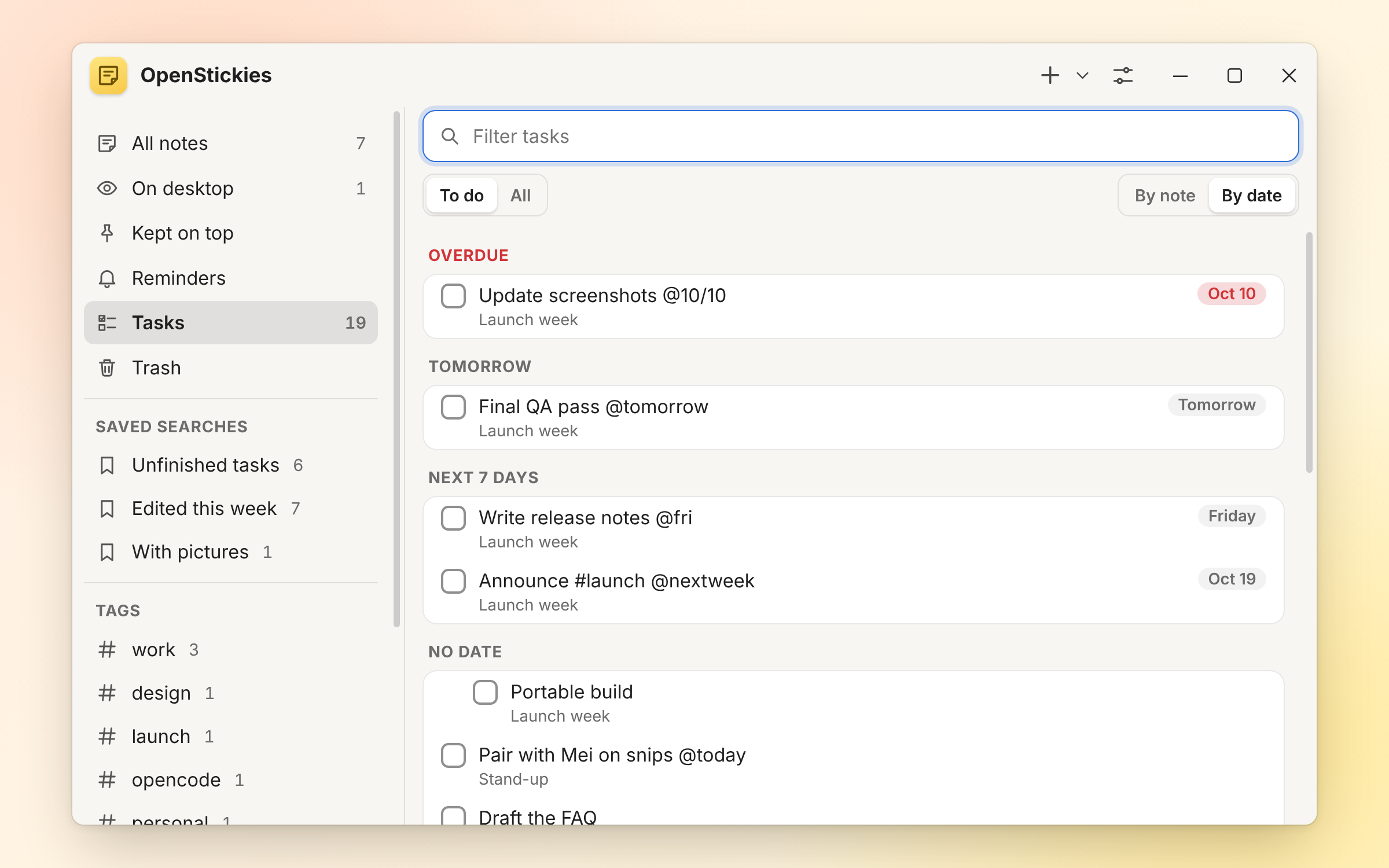
Version history
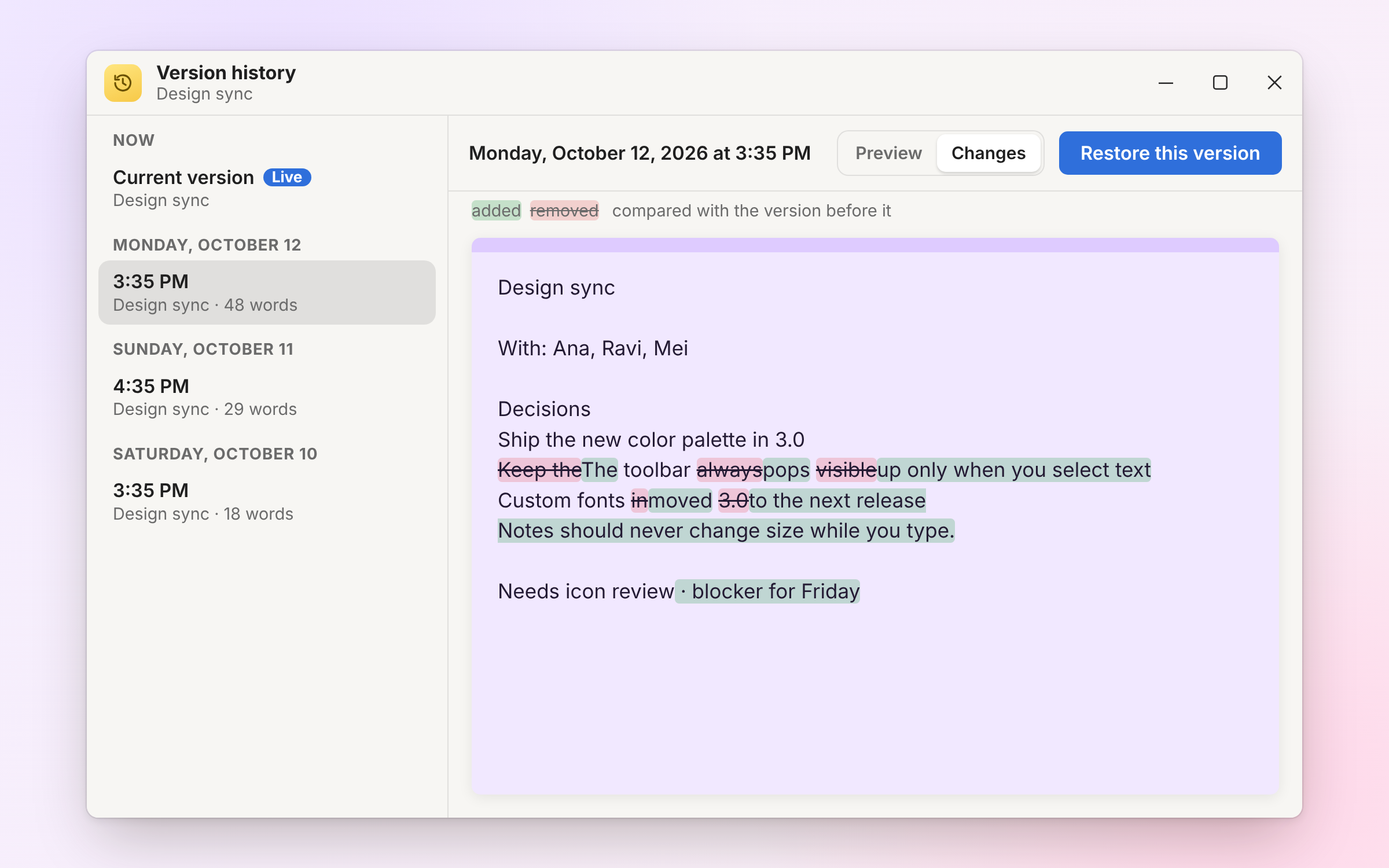
OpenStickies keeps a snapshot whenever you come back to a note after a few minutes away, and shows exactly what changed, word by word.
Private notes
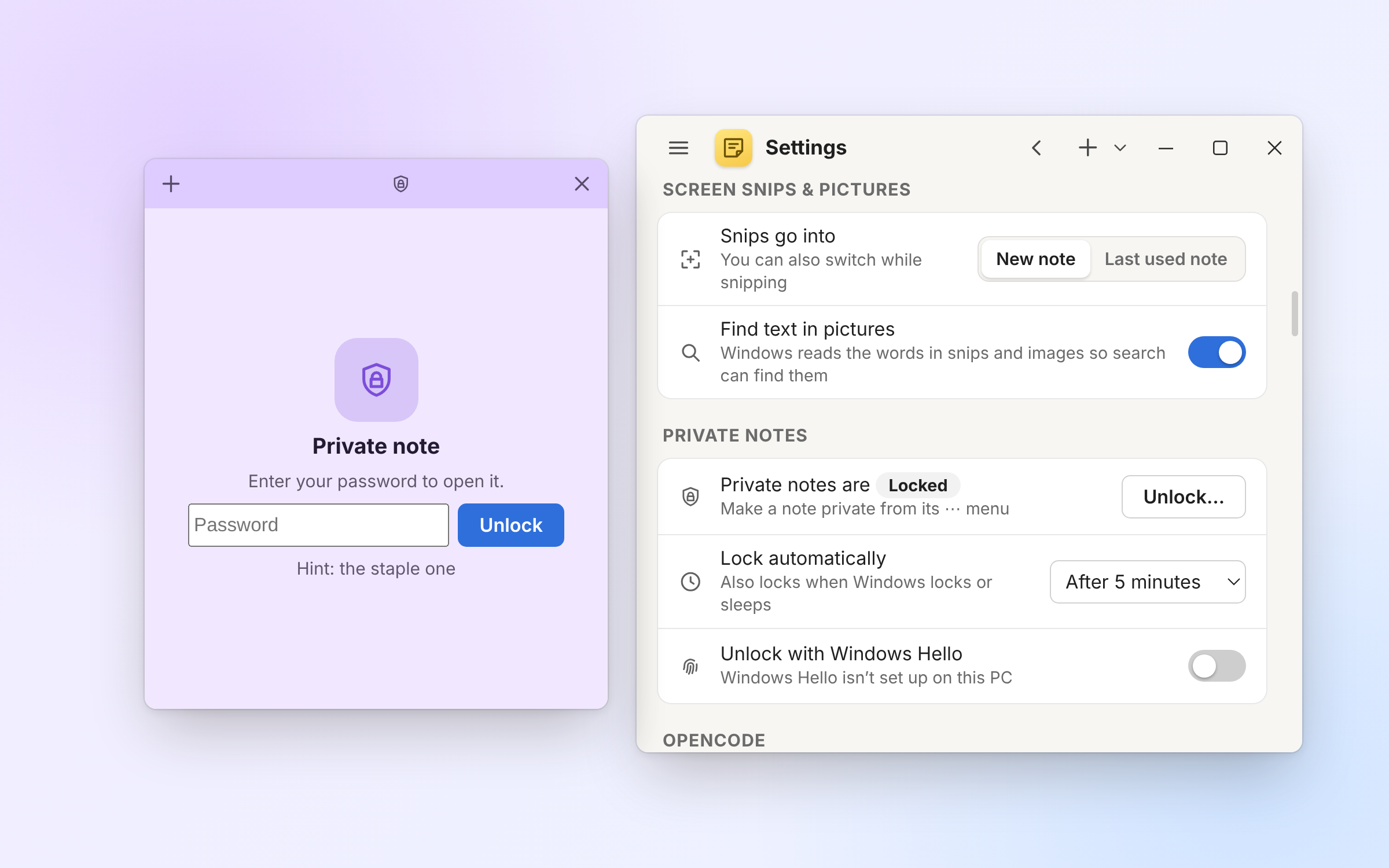
Set a password in Settings, then choose ⋯ → Make private… on any note. Its words and pictures are encrypted on disk.
If you forget the password, private notes can’t be recovered.
Dark mode
Choose System, Light or Dark in Settings. System follows Windows, and every note color has its own dark version.
OpenCode integration
While OpenCode works on a multi-step task, a sticky on your desktop shows its plan.
~/.config/opencode/plugins/.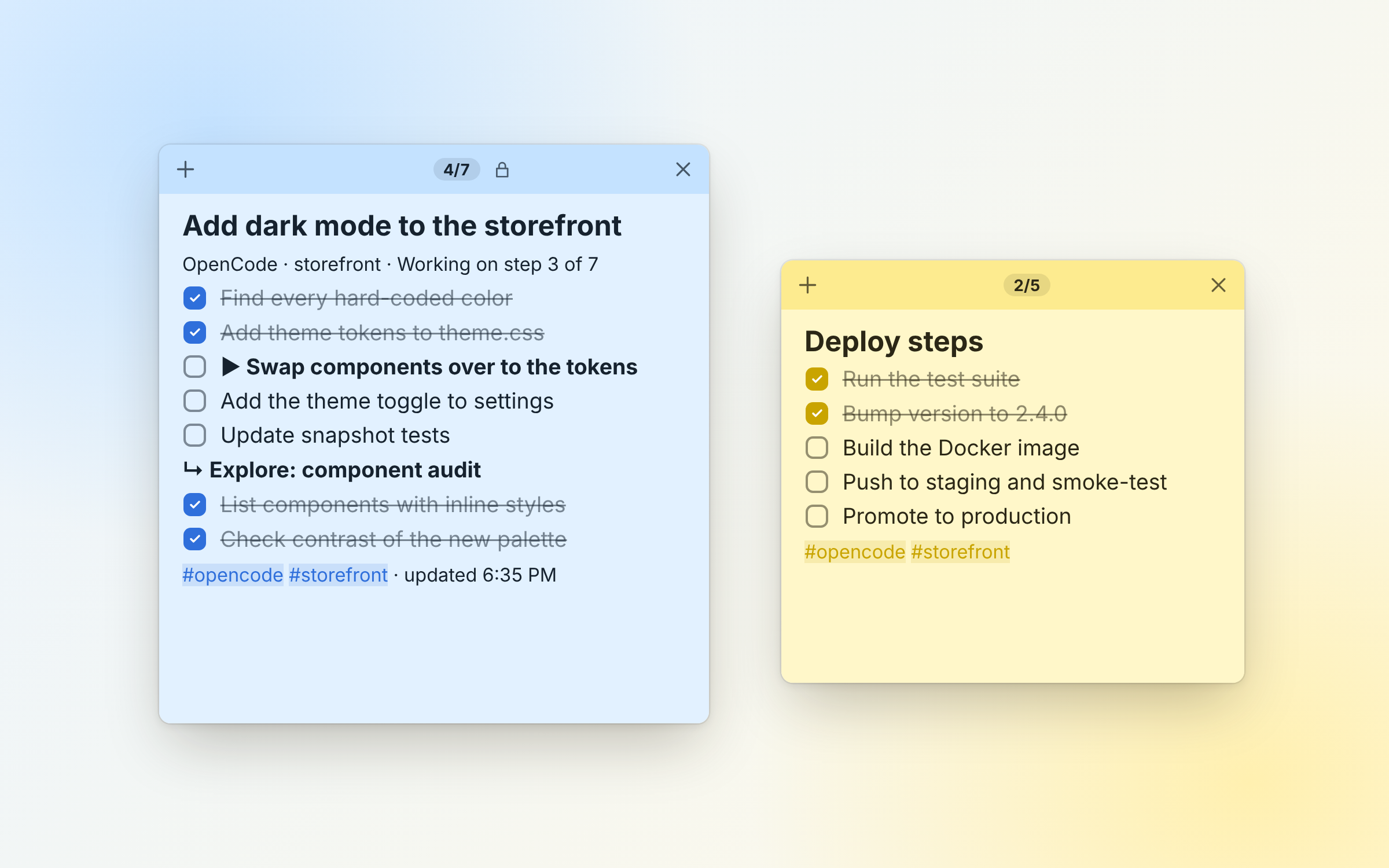
The plugin also gives the agent four tools, so you can just ask: “put the deploy steps on a sticky” or “make me a checklist sticky for this refactor and tick items off as you go.”
| Tool | What it does |
|---|---|
stickies_create | New sticky with a title and Markdown content (- [ ] makes a checkbox), optional color and tags |
stickies_update | Replace the content, append to it, rename it or change its color |
stickies_check | Tick or untick a checklist item by its text or number |
stickies_list | List the stickies the agent has made (with ids), e.g. to continue one from an earlier session |
The agent can only change stickies it created. It can’t read, change or tick your own notes, and a sticky you delete can’t be edited back.
Requests with two or more distinct subtasks get a to-do list first. Quick questions don’t create a note. Task notes are blue, locked so your typing can’t clash with the agent, and tagged #opencode plus the project name.
It runs over a small API on 127.0.0.1 with a random port and token; requests from web pages are refused. Scripts can use it too — see the README.
Safety & privacy
No account to sign up for. Your notes live in %APPDATA%\OpenStickies\data\, with several layers of protection against slips, crashes and prying eyes.
Notes, pictures, templates and settings are saved as files on your PC. Everything stays on your computer.
A snapshot whenever you return to a note after a few minutes away. Restore any version, and undo a restore.
Deleted notes wait in the Trash for 30 days before they’re gone.
Daily copies of your notes cover the last 14 days.
Saves are written atomically and flushed to disk, so a crash won’t leave a half-written file.
One file with every note, image and template. Private notes stay encrypted inside it.
AES-256-GCM, with the key protected by your password via scrypt.
Context isolation, a strict Content-Security-Policy and an allowlist sanitizer for anything pasted or imported.
Keyboard shortcuts
Global shortcuts work anywhere in Windows, and you can change them in Settings.
| Ctrl+Alt+N | New note |
|---|---|
| Ctrl+Alt+X | Snip the screen into a note |
| Ctrl+Alt+S | Bring all notes to the front |
| Ctrl+Alt+H | Show / hide all notes |
| Ctrl+Alt+W | Next workspace |
# ## ### | Headings |
|---|---|
- 1. | Bulleted / numbered list |
[] | Checklist item |
> | Quote |
``` --- then Enter | Code block / divider |
**bold** *italic* ~~strike~~ | Bold / italic / strikethrough |
`code` ==highlight== | Inline code / highlight |
/ | Command menu |
#project [[ | Tag / link to a note |
@fri @+3d | Due date on a checklist item |
| Ctrl+N / Ctrl+W / Ctrl+D | New / close / delete note |
|---|---|
| Ctrl+H | Notes list |
| Ctrl+B / I / U / T / E | Bold / italic / underline / strikethrough / inline code |
| Ctrl+Shift+L / O / C | Bulleted / numbered list / checklist |
| Ctrl+Alt+1 / 2 / 3 / 0 | Title / heading / subheading / normal text |
| Tab / Shift+Tab | Indent / outdent (list items, table cells) |
| Alt+Shift+↑ / ↓ | Move a list item |
| Ctrl+K | Link |
| Ctrl+F | Find in note |
| Ctrl+Shift+H | Edit HTML source |
| Ctrl+Shift+V | Paste as plain text |
| Ctrl+Shift+P | Keep on top |
| Ctrl+Shift+R | Roll up / unroll (or double-click the title bar) |
| Ctrl+= / Ctrl+- / Ctrl+0 | Zoom in / out / reset |
| Ctrl+P | |
| Ctrl+Click | Open a link, linked note or #tag |

Free for Windows 10 and 11. Choose the installer, or the portable version if you’d rather not install anything.
Latest: Release notes
Installs OpenStickies and adds Start menu and desktop shortcuts.
OpenStickies-Setup-<version>.exe
Runs without installing anything. Download it and double-click.
OpenStickies-Portable-<version>.exe
Seeing “Windows protected your PC”? The builds aren’t code-signed, so Windows SmartScreen may warn you the first time. Click More info → Run anyway.
Needs Node.js 20 or newer. npm run dist builds the installer and portable app into dist/.
git clone https://github.com/ItsCetla/OpenStickies.git
cd OpenStickies
npm install
npm start
FAQ
Yes. The builds aren’t code-signed, so Windows SmartScreen may show that warning the first time you run OpenStickies. Click More info → Run anyway.
Everything stays on your computer, in %APPDATA%\OpenStickies\data\: your notes in notes.json, pictures in attachments\, version history in history\ and daily backups in backups\. Settings → Open data folder takes you there.
One catch: if OpenStickies is started by a packaged Windows app (for example from a terminal inside Claude Desktop), Windows redirects that copy’s data to the app’s private folder, so it has its own separate notes.
OpenStickies used to be called Stickies. The first time OpenStickies starts, it copies everything from %APPDATA%\Stickies\data\ into its own folder: notes, pictures, version history, settings, templates and private notes. The installer also replaces the old Stickies install, so you won’t have both.
The old folder stays where it was as a backup. Once you’ve checked your notes are all there, you can delete it.
No account. Your notes are saved on your computer, not in the cloud. The OpenCode integration is local too: it talks to OpenStickies over a small API on 127.0.0.1, and requests from web pages are refused.
Open Settings → Back up all notes… to save one file with every note, image and template (private notes stay encrypted). On the other PC, use Restore from backup…, which adds the backup’s notes alongside your current ones.
OpenStickies also keeps daily copies of your notes for the last 14 days, and the Trash keeps deleted notes for 30 days.
It keeps running in the system tray. Windows hides new tray icons behind the ^ arrow at the right end of the taskbar; drag the yellow icon onto the taskbar to keep it in view. Click it to bring your notes back, or right-click it for more.
You can also press Ctrl+Alt+H to show or hide all notes, or Ctrl+Alt+N for a new one.
No. Private notes are encrypted with a key that only your password can unlock, so if you forget the password, they can’t be recovered. Your other notes aren’t affected.
No. OpenStickies is made for Windows 10 and 11, and the releases are Windows builds.